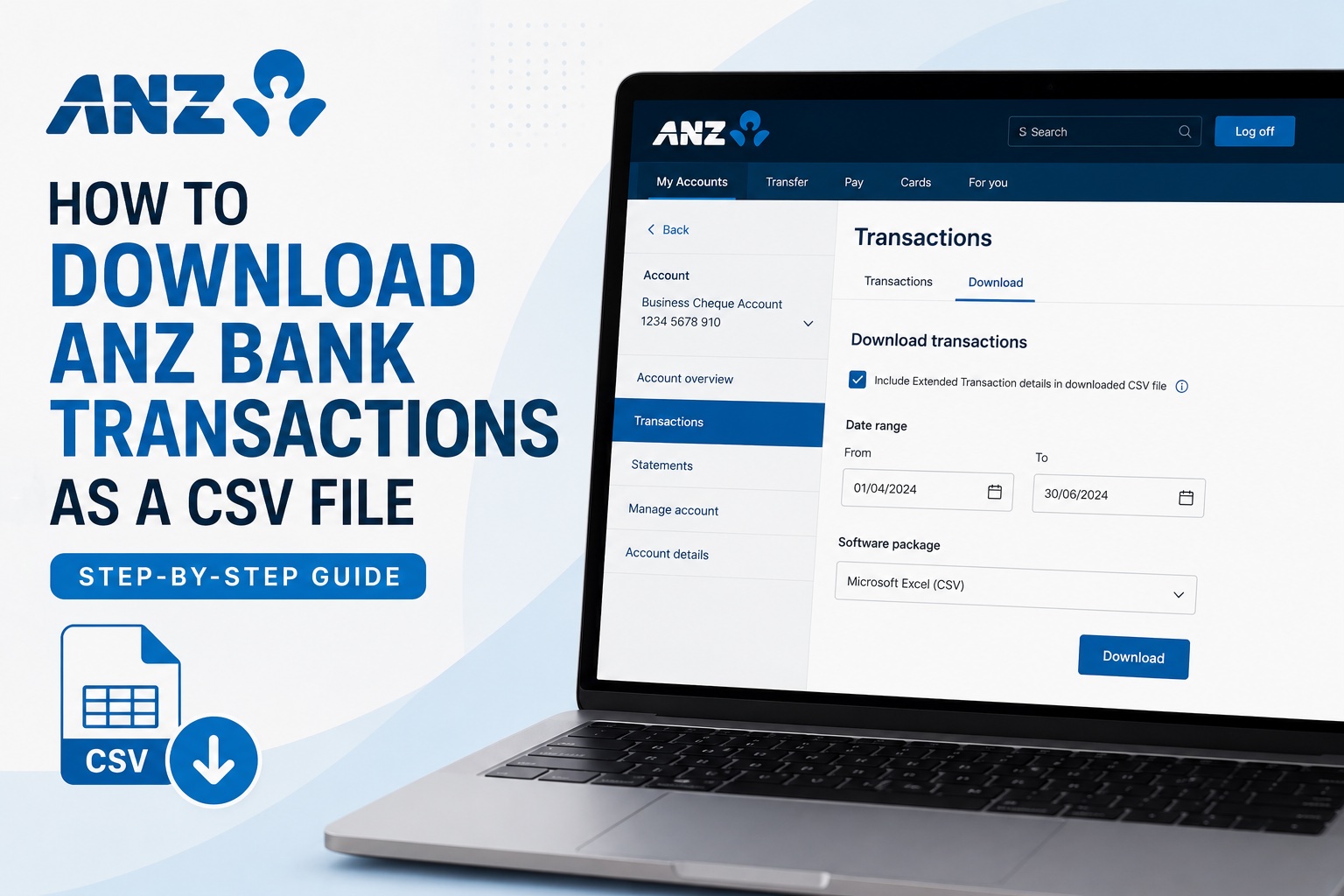
Need to download transactions from your ANZ bank account as a CSV file? ANZ Internet Banking allows you to export your transaction history for a selected date range, making it easier to use your banking data for bookkeeping, tax preparation, spreadsheets and financial reporting.
In this guide, we'll show you how to download ANZ bank transactions as a CSV file in just a few simple steps.
Watch the video tutorial below or follow the step-by-step instructions.
How to Download ANZ Transactions as CSV
Step 1: Log In to ANZ Internet Banking
Start by logging in to your ANZ Internet Banking account.
Once you're logged in, select the bank account containing the transactions you want to download.
If you have multiple ANZ accounts, make sure you've selected the correct account before continuing.
Step 2: Open the Transactions Tab
After selecting your account, navigate to the Transactions tab.
This is where you can view the transaction history associated with your selected ANZ bank account.
Look for the Download link and click it to access the transaction download options.
Step 3: Include Extended Transaction Details
On the transaction download screen, look for the option:
“Include Extended Transaction Details in downloaded CSV file”
Enable this option if you want your CSV export to contain additional information about your transactions.
Having more detailed transaction descriptions can be particularly useful when you need to categorise transactions later for bookkeeping, tax preparation or financial reporting.
Step 4: Select Your Transaction Date Range
Next, enter the start and end dates for the transactions you want to download.
For example, if you need transactions for the second quarter of the calendar year, you could select:
From: 1 April
To: 30 June
You can choose the period that matches your bookkeeping or reporting requirements.
This makes it easy to download transactions for a specific month, quarter, financial period or other custom date range.
Step 5: Select Microsoft Excel (CSV)
Find the Software Package option.Make sure Microsoft Excel (CSV) is selected. CSV stands for Comma-Separated Values and is a widely supported format for transferring financial data between banks, spreadsheets, bookkeeping applications and accounting software.
Step 6: Download Your ANZ Transactions
Once you've selected your date range and confirmed Microsoft Excel (CSV) as the format, click Download.
That's it!
Your ANZ transactions for the selected period will be downloaded as a CSV file that you can save to your computer and use for bookkeeping, accounting or financial analysis.
Why Download ANZ Transactions as a CSV File?
A CSV transaction export is useful when you need to work with your banking data rather than simply read an account statement.
CSV files store transaction information in a structured format that can be opened in spreadsheet applications and processed by compatible accounting and bookkeeping tools.
You may want to download your ANZ transactions as CSV for:
Bookkeeping
Tax preparation
BAS preparation
Business expense tracking
Income tracking
Transaction categorisation
Creating Profit & Loss statements
Importing transactions into financial software
Reviewing business spending
Sharing transaction data with an accountant
For sole traders, freelancers, contractors, gig workers and small businesses, regularly exporting bank transactions can make financial record keeping much easier.
ANZ CSV vs PDF Bank Statement: Which Do You Need?
Whether you should download a CSV file or a PDF bank statement depends on what you're trying to accomplish.
A PDF bank statement is generally better when you need a readable financial document showing account activity for a particular statement period. For example, you might need PDF statements for proof of income, a loan application, a rental application or your financial records.
A CSV transaction file is generally better when you need to analyze or process individual transactions.
Because CSV files organize transaction data into structured fields, they are much easier to use for:
Sorting transactions
Filtering transactions
Categorizing expenses
Calculating income
Preparing financial reports
Importing data into compatible financial software
If your goal is to prepare a Profit & Loss statement, downloading your ANZ transactions as CSV can save significant time compared with manually copying transactions from a PDF statement.
Turn Your ANZ Transactions Into a Profit & Loss Statement
Downloading your ANZ transactions is only the first step if you're trying to understand how much your business actually earned.
To manually create a Profit & Loss statement, you would normally need to:
Download your transactions.
Identify business and personal transactions.
Separate income from expenses.
Categorize each business expense.
Calculate totals for each category.
Calculate your total income.
Calculate your net profit.
Build the final Profit & Loss statement.
For an account containing hundreds or thousands of transactions, this process can become time-consuming.
Accounting Samurai can help simplify it.
Instead of manually processing every transaction, Accounting Samurai helps you turn your banking data into an organized Profit & Loss statement.
This can be particularly useful for:
Uber and rideshare drivers
Uber Eats and DoorDash drivers
Amazon Flex drivers
Gig workers
Freelancers
Contractors
Sole traders
Small business owners
Generate a P&L From Your ANZ Transactions
Already downloaded your ANZ transactions?
Upload your banking data to Accounting Samurai and turn your income and expenses into an organised Profit & Loss statement without manually building one from scratch.
👉 Generate Your Free Profit & Loss Statement Now
Frequently Asked Questions
Can I download ANZ bank transactions as a CSV file?
Yes. ANZ Internet Banking provides transaction download options that allow you to export transactions for a selected account and period. Select Microsoft Excel (CSV) as the software package when downloading your transactions.
Where can I download transactions in ANZ Internet Banking?
Log in to ANZ Internet Banking, select the relevant bank account and open the Transactions tab. From there, select the Download option to access the transaction export settings.
Can I select a custom date range for ANZ transactions?
Yes. You can specify the transaction period you need when preparing your download, making CSV exports useful for monthly, quarterly and other reporting periods.
What are extended transaction details in ANZ?
ANZ provides an option to include extended transaction details in the downloaded CSV file. Enabling this can provide additional transaction information that may be useful when reviewing or categorising your banking activity.
What can I do with an ANZ CSV transaction file?
CSV files can be used for bookkeeping, tax preparation, expense tracking, spreadsheet analysis, transaction categorisation and preparing financial reports such as Profit & Loss statements.
Should I download ANZ transactions as CSV or PDF?
Use PDF when you primarily need a readable bank statement or supporting financial document. CSV is usually more convenient when you need to analyze, categorize, import or otherwise process individual transactions.
Can I create a Profit & Loss statement from ANZ transactions?
Yes. You can manually categorize the income and expenses contained in your ANZ transaction export and use those figures to prepare a P&L statement. Alternatively, tools such as Accounting Samurai can help automate much of this process.