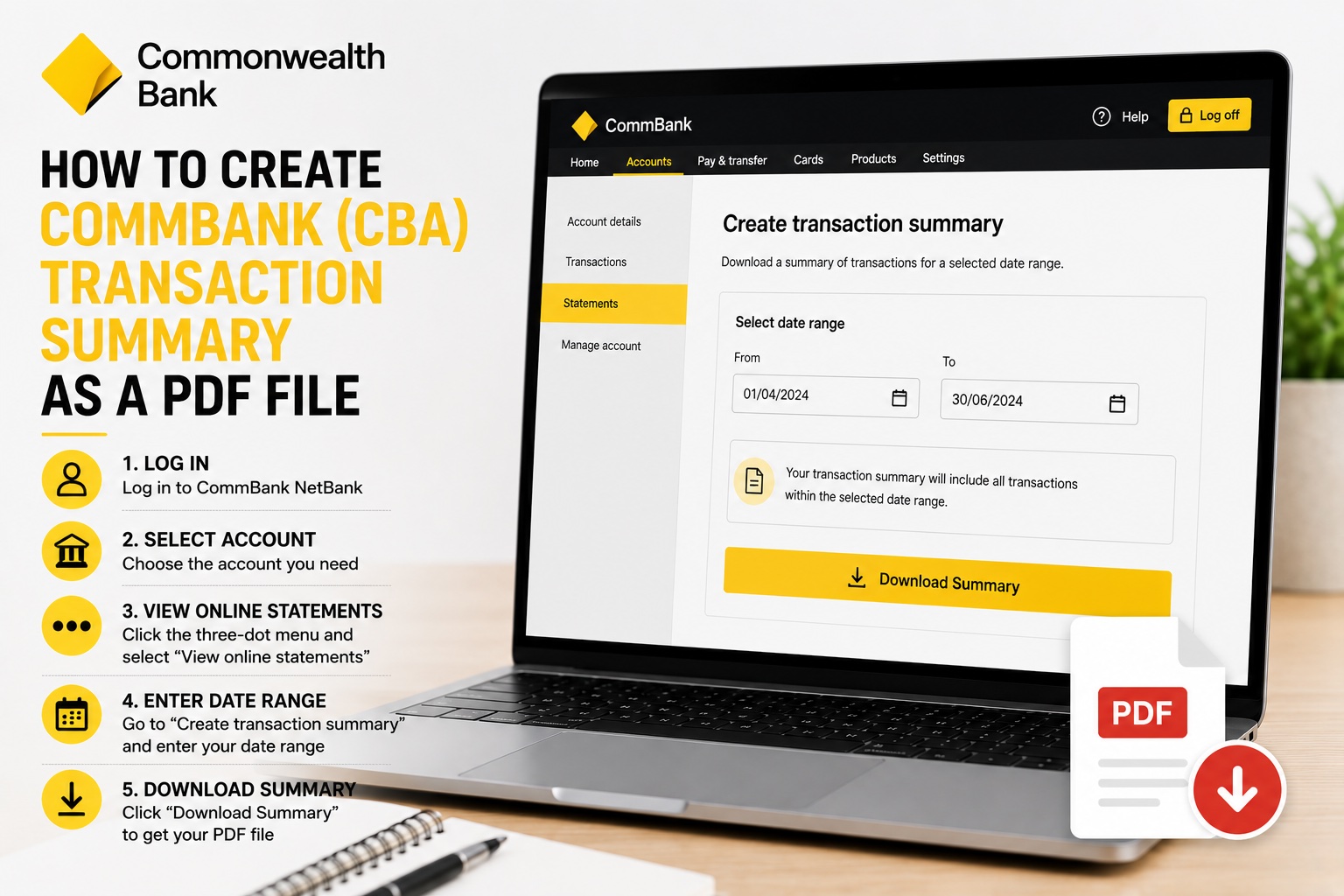
Need a PDF summary of transactions from your Commonwealth Bank account? CommBank NetBank allows you to create a Transaction Summary for a selected date range and download it as a PDF file. This can be useful when you need a record of transactions covering a specific period rather than one of your regular bank statement periods.
In this guide, we'll show you how to create a CommBank Transaction Summary as a PDF in just a few simple steps.
Watch the video tutorial below or follow the step-by-step instructions.
How to Create a CommBank Transaction Summary PDF
Step 1: Log In to CommBank NetBank
Start by logging in to your CommBank NetBank account. Once you're logged in, you'll see the Commonwealth Bank accounts available through your online banking.
Step 2: Select Your Bank Account
Choose the bank account for which you want to create a transaction summary. If you have multiple Commonwealth Bank accounts, make sure you've selected the correct account before continuing.
Step 3: Select View Online Statements
Find the three-dot menu on the right-hand side and click it to open the available account options. Select View online statements. This takes you to the area where you can access your statements and create a transaction summary.
Step 4: Find Create Transaction Summary
Navigate to the Create transaction summary section. This feature allows you to generate a summary of transactions covering a date range you select.
Step 5: Choose Your Transaction Date Range
Enter the start and end dates for the transactions you want included in your summary. For example, if you need a transaction summary for the second quarter of the calendar year, you could select:
From: 1 April
To: 30 June
Using a custom date range can be particularly useful when the period you need doesn't match your regular bank statement periods.
Step 6: Download Your Transaction Summary
Once you've entered the date range, click Download Summary. Your Commonwealth Bank Transaction Summary can then be saved as a PDF file. That's it! You now have a CommBank Transaction Summary PDF covering the period you selected.
What Is a CommBank Transaction Summary?
A CommBank Transaction Summary provides a record of transactions for a selected period. Unlike a regular bank statement, which covers an established statement period, the transaction summary feature allows you to specify the date range you need. For example, you may want transactions covering:
A calendar month
A quarter
A particular business reporting period
A period requested by an accountant
A recent period not conveniently covered by a single statement
This makes the transaction summary useful when you need a PDF record of account activity for a particular period.
When Might You Need a CBA Transaction Summary?
There are several situations where having a PDF summary of your Commonwealth Bank transactions may be useful. These can include:
Bookkeeping
Tax preparation
BAS preparation
Proof of recent transactions
Financial record keeping
Proof of income
Rental applications
Loan applications
Mortgage applications
Business financial records
Providing transaction information to an accountant
The exact documents required for a loan, rental application, proof of income or another financial purpose will depend on the organisation requesting them.
CommBank Transaction Summary vs Bank Statement
A CommBank Transaction Summary and a regular Commonwealth Bank statement both contain information about your account activity, but they serve different purposes.
CommBank Bank Statement
A regular bank statement covers a defined statement period and provides a formal record of your account activity for that period.
PDF bank statements are commonly useful for:
Financial record keeping
Proof of income
Rental applications
Loan applications
Mortgage applications
Tax records
Providing statements to an accountant
If that's what you need, see our separate guide:
👉How to Download CommBank (CBA) Bank Statements as PDF Files
CommBank Transaction Summary
A Transaction Summary is useful when you need transaction information covering a specific date range. Instead of locating multiple statements and working across different statement periods, you can enter the dates you need and generate a summary for that period. For example, if you need transactions from 1 April through 30 June, you can select those dates and create a PDF summary for that period.
CommBank Transaction Summary PDF vs CSV Export
You should also consider whether you need a PDF Transaction Summary or a CSV transaction export. The right format depends on what you plan to do with the information.
Use a PDF Transaction Summary When You Need:
A readable record of transactions
A document you can save
A document you can provide to another person or organisation
Transactions covering a particular date range
A convenient PDF record of account activity
Use a CSV Transaction Export When You Need:
Structured transaction data
Spreadsheet analysis
Transaction sorting and filtering
Expense categorisation
Income categorisation
Bookkeeping
Importing data into compatible financial software
Preparing financial reports
If you need structured transaction data rather than a PDF, see:
👉How to Download CommBank (CBA) Transactions as a CSV File
Using Your CommBank Transactions for Bookkeeping
If you use your Commonwealth Bank account for business activity, your transaction records can provide much of the raw information needed for bookkeeping. Your account might contain business income such as:
Customer payments
Client payments
Uber or rideshare payouts
Delivery platform payments
Marketplace income
Other business revenue
Your expenses might include:
Fuel
Vehicle expenses
Tolls and parking
Phone and internet
Software subscriptions
Advertising
Insurance
Equipment
Professional services
Bank fees
Other operating expenses
However, downloading your transactions doesn't automatically turn them into organised business accounts. You'll still need to determine which transactions are business-related, distinguish income from expenses and assign the transactions to appropriate categories.
Turn Your CommBank Transactions Into a Profit & Loss Statement
If you're creating a Transaction Summary because you need to prepare your business accounts, the next step may be creating a Profit & Loss statement. A Profit & Loss statement, also called a P&L or income statement, summarises your business income and expenses over a particular period and calculates your resulting profit or loss.
Preparing one manually from bank transactions can involve:
Collecting your bank and card transactions.
Identifying business transactions.
Separating personal and business spending.
Identifying your business income.
Categorising your business expenses.
Calculating totals for each expense category.
Calculating total revenue.
Calculating total expenses.
Determining your net profit or loss.
Preparing the final P&L statement.
For an account containing hundreds or thousands of transactions, this process can take considerable time.
Accounting Samurai can help simplify it.
Instead of manually working through every transaction in a spreadsheet, Accounting Samurai helps turn your bank and card transaction data into an organised Profit & Loss statement.
This can be particularly useful for:
Uber drivers
Rideshare drivers
Uber Eats drivers
DoorDash drivers
Amazon Flex drivers
Gig workers
Freelancers
Contractors
Sole traders
Small business owners
Generate a P&L From Your Bank Transactions
Already downloaded your Commonwealth Bank transaction data?
Upload your bank and card transaction records to Accounting Samurai and turn your income and expenses into an organised Profit & Loss statement without manually building one from scratch.
👉 Generate Your Free Profit & Loss Statement Now
Frequently Asked Questions
How do I create a CommBank Transaction Summary?
Log in to CommBank NetBank, select the relevant account, open the three-dot menu, select View online statements, navigate to Create transaction summary, enter the date range you need and click Download Summary.
Can I download a CommBank Transaction Summary as a PDF?
Yes. The Create transaction summary feature allows you to generate a transaction summary for the selected period and download it as a PDF file.
Can I choose a custom date range for a Commonwealth Bank Transaction Summary?
Yes. You can enter the date range for the transactions you want included in the summary. This is one of the main differences between a transaction summary and a regular bank statement.
What is the difference between a CommBank Transaction Summary and a bank statement?
A bank statement covers an established statement period. A Transaction Summary allows you to select a specific date range and generate a summary of transactions covering that period. If you need an official statement for a particular statement period, downloading your regular bank statement may be more appropriate.
Should I download CommBank transactions as PDF or CSV?
Choose PDF when you need a readable transaction summary that can be saved or provided as a document. Choose CSV when you need to sort, filter, categorise, analyse or process individual transactions in a spreadsheet or compatible financial application.
Can I use a CommBank Transaction Summary as proof of income?
A Transaction Summary may provide evidence of deposits and account activity, but whether it is accepted as proof of income depends on the organisation requesting your financial documents. A lender, landlord or other organisation may instead request bank statements, payslips, tax returns, a Profit & Loss statement or additional documentation.
Can I create a quarterly CommBank Transaction Summary?
If the available date range permits it, you can enter the beginning and end dates of the quarter you need. For example, for the second calendar quarter, you could select 1 April through 30 June.
Can I create a Profit & Loss statement from CommBank transactions?
Yes. You can review your transactions, separate business and personal activity, identify business income and categorise expenses before using the resulting figures to prepare a Profit & Loss statement. Alternatively, Accounting Samurai can help reduce the amount of manual transaction processing required.